Nicepage: The Complete Guide to Building, Publishing, and Profiting from Your Website
If you have ever wanted to build a website without touching a single line of code, you have probably heard of Nicepage. But Nicepage is not just another website builder. It is a design tool that gives you the freedom to create exactly what you want, where you want it, and then publish it anywhere.
This guide covers everything from A to Z. How to create a website from scratch. How to publish it online. How to optimise it for search engines. How to turn it into a WordPress theme. And how to actually make money with it. Everything here is based on verified information from official sources and real user experiences.
Let us begin.

What Is Nicepage
Nicepage is a visual drag and drop website builder that allows you to create beautiful, responsive websites. It was developed by the team behind Artisteer, a template design tool launched in 2007, and Nicepage itself launched in 2018. Since then, it has grown into a multi platform design tool available as a desktop application for Windows and macOS, as well as plugins for WordPress and Joomla, and a browser based Online Builder.
Unlike all in one hosted platforms like Wix or Squarespace, Nicepage is positioned as a design tool for freelancers, agencies, and anyone who needs to export clean, portable code. You design once, and you can publish to HTML, WordPress, or Joomla. This flexibility is what sets Nicepage apart.
How to Create a Website with Nicepage
Creating a website with Nicepage is straightforward, whether you are a complete beginner or an experienced designer.
Choose Your Workflow
Nicepage offers multiple workflows depending on how and where you want to build.
The Online Builder allows you to build and manage projects in a browser. This is the simplest way to start. The Desktop Application is for designers who prefer a desktop workspace or offline project work. The WordPress Plugin is for WordPress site owners who want visual page and theme editing. The Joomla Extension serves Joomla users. And HTML export is for users who want files for separate hosting or custom deployment.
The right workflow is usually the one that matches your current platform and how comfortable you are with each option.
Start with a Template or Use the AI Builder
When you open Nicepage for the first time, you have two main options. You can start with a predesigned template, or you can use the AI Builder to generate something from a simple description.
Nicepage offers over 15,000 customizable templates across roughly 18 categories including business, real estate, restaurants, and weddings. These templates are professionally designed and fully responsive, meaning they look great on any device.
If you prefer to create something unique, you can use the AI Page Builder. You simply enter a site topic and a short description, and the system generates page layouts and block designs. The AI tools are designed as a quick and easy way to start, not as a replacement for manual design. You can filter results to show only light designs, only dark designs, or both, and you can swap the site's color palette from a built in list.
Design Your Pages
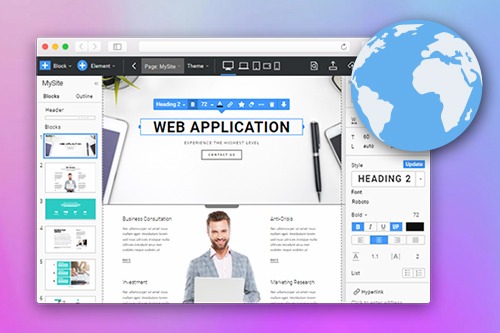
Once you have a starting point, you enter the Nicepage editor. The user interface consists of the Top Bar, Quick Access, Page Navigator, Page Editor, and Property Panel.
In the Design Editor, you can add, move, align, and edit Blocks, Containers, and Elements. Nicepage uses a freehand positioning system, which means you can place elements anywhere on the canvas rather than being locked into a rigid grid. This gives you far more design freedom than most builders.
The Page Navigator on the left makes it easy to select and manage Blocks. You can quickly move Blocks, changing their order on a web page.
The Property Panel on the right lets you edit all supported properties for any element you select. At the top of the Property Panel are Tabs, allowing you to switch between Element, Container, and Block properties.
Responsive Design
Today, visitors view websites mostly on mobile devices, so your website should look comfortable on different mobile screens. Nicepage handles this automatically. All Blocks are fully responsive and customizable with the Nicepage Editor.
The editor lets you preview your design in different device views. You can adjust layouts for desktop, tablet, and mobile separately, ensuring your site looks perfect on every screen.
Add Features
Nicepage includes a rich set of components including grid layouts, galleries, sliders, forms, animations, menus, and more. You can add contact forms, image galleries, video embeds, and e-commerce functionality without any coding.
For e-commerce, you can create an online store and accept payments via Stripe or PayPal. The platform supports product elements and page templates to output them on your HTML websites easily.
Save and Preview
Before publishing, you can preview your site to see exactly how it will look. The Top Bar includes Save, Preview, Publish, Export, Settings, and Profile icons. Use the Preview option to test your design before going live.
How to Publish Your Website
Once your design is complete, Nicepage offers multiple publishing options.
Publish to Nicepage Hosting
The simplest option is to publish directly to Nicepage's hosting. With a premium plan, you get hosting with a subdomain at nicepage.io and the ability to connect your own domain. This is ideal for users who want a one stop solution without managing external hosting.
Export as HTML
You can export your site as clean HTML files and upload them to any hosting provider. This gives you full control over where your site lives. You simply export the HTML, download the files, and upload them via FTP to your hosting.
Export as WordPress Theme
One of Nicepage's most powerful features is the ability to export your design as a WordPress theme. This allows you to create a custom WordPress theme without writing any code.
To export as a WordPress theme, run the Desktop Application, open your working site, open the Theme Panel, click the Publish button, and in the Export Dialog, select the WordPress Tab. You can export the Theme only, Content only, or Theme and Content together. The package includes the Theme, Plugin, and Pages.
Export as Joomla Template
Similarly, you can export your design as a Joomla template. This works the same way as the WordPress export, giving Joomla users the ability to create custom templates visually.
How to Work on SEO
Search engine optimisation is essential for getting visitors to your site. Nicepage provides built-in SEO tools to help you rank higher in search results.
Page Level SEO
You can configure SEO properties for each page individually. This includes meta title, description, keywords, and canonical URL. These are the most important elements for search engines.
To access these settings, go to Page Settings and then SEO. You can adjust the meta title, description, keywords, and canonical URL from here.
Site Wide SEO
For settings that apply to your entire site, go to Site Settings and then SEO. Here you can set default meta keywords and description that will apply across your site.
You can also create SEO friendly URLs without the .html extension by checking the appropriate box in the settings.
Advanced SEO Features
Nicepage offers several advanced SEO features that help improve your rankings.
You can export a minimal CSS file for each page, which is about ten times more compact and improves page loading scores. Faster loading pages rank better in Google.
Image lazy loading allows images to load gradually as the user scrolls. This decreases the initial loading speed, which is good for SEO.
SEO text highlights let you emphasize keywords and key phrases in your content. This increases the importance of your keywords for search engines.
Alt text for images allows you to add relevant keywords to your images. This helps search engines crawl and classify your site better.
WordPress SEO Plugin Compatibility
If you are using Nicepage with WordPress, the platform is fully compatible with popular SEO plugins like Yoast and RankMath. These plugins provide additional analysis and optimisation tools that work alongside Nicepage's built in SEO settings.
Generating a Sitemap
A sitemap helps search engines discover all your pages. Nicepage supports sitemap generation, which you can submit to Google Search Console and Bing Webmaster Tools.
How to Turn Your Design into a WordPress Theme
This is one of the most valuable features for designers and agencies. You can design a complete website in Nicepage and export it as a fully functional WordPress theme.
Step One: Design Your Site
Create your website in the Nicepage Desktop Application. Design everything including the header, footer, pages, blog template, and any custom layouts.
Step Two: Export the Theme
Click the Publish button. Choose WordPress. Enter the File Name and Path. The Theme and Editor Plugin options are selected by default. You can also export e-commerce templates for WooCommerce.
There are three export options:
- Theme only: Exports just the theme without content. Use this if you already have content on your WordPress site.
- Content only: Exports only the content with the plugin. Use this if the theme is already installed.
- Theme and Content: Exports everything in one package. This is the most common option.
Click the Export button to create the ZIP file.
Step Three: Install on WordPress
Switch to your WordPress Admin. Go to Appearance, then Themes, and click Add New Theme. On the Add Themes page, click the Upload button. Browse to the exported ZIP file and click Install Now. After the theme is installed, click Activate.
Step Four: Install the Plugin
The activation starts an import wizard. Click the Install Plugin button in the dialog to install the Editor Plugin. Your installation package zip contains the Editor Plugin, Pages, Posts, Products, Images, Sidebar, Menu, and the Editor Plugin.
Step Five: Import Content
Click the Import Content button to import your pages and content. If you have previously imported pages and want them replaced, click Replace previously imported Content.
Step Six: Set Homepage
By default, WordPress shows the Blog page as the home page. To change this, go to Settings, then Reading. Choose the Static Page option for your homepage, then select the Homepage from the list. Click Save Changes.
Step Seven: Edit with Nicepage
Once installed, you can edit any page with the Nicepage editor directly inside WordPress. Click the Edit with Nicepage button to start the Content Editor. You will see the same editor and the page you created in the Nicepage application.
How to Gain Money with Nicepage
Nicepage is not just a design tool. It is a platform that can generate income in multiple ways.
Build and Sell Websites
The most obvious way to make money is to build websites for clients. You can design custom websites in Nicepage, export them as HTML, WordPress themes, or Joomla templates, and sell them to clients. The platform gives you complete control over the design and output, so you are not locked into a proprietary system.
Sell WordPress Themes
You can design a theme in Nicepage, export it as a WordPress theme, and sell it on marketplaces like ThemeForest or directly to clients. Because Nicepage themes are clean, responsive, and fully customisable, they have real market value.
Offer Website Maintenance Services
Once you build a site for a client, you can offer ongoing maintenance services. This includes updates, content changes, and SEO optimisation. Nicepage's ease of use means you can make changes quickly, maximising your profit per hour.
E-Commerce Websites
You can build e-commerce websites for clients and earn money from the build fees. Nicepage supports WooCommerce and VirtueMart, so you can create fully functional online stores. You can also charge for ongoing maintenance and support.
Affiliate Marketing
You can become a Nicepage affiliate and earn commissions by referring new users. The platform offers affiliate programs that pay a percentage of each sale. If you write reviews, create tutorials, or recommend Nicepage to your audience, you can earn passive income.
Create and Sell Templates
You can design website templates in Nicepage and sell them on the Nicepage marketplace or other template marketplaces. With over 15,000 templates already available, there is still room for high quality, niche designs.
Offer Customisation Services
Many users want a website but do not have the time or skill to customise it themselves. You can offer customisation services, taking a template and tailoring it to a client's specific needs.
Build Your Own Site
You can use Nicepage to build your own business website, portfolio, or blog. A professional online presence can attract clients, generate leads, and increase your income. The platform includes built in SEO tools to help you get found in search results.
Pricing and Plans
Nicepage offers several pricing plans to suit different needs. All plans include over 15,000 customizable templates, an AI page builder, a drag and drop editor, and customer support.
The Starter plan is completely free and has some limitations. It includes 2 App Projects, 2 HTML Sites, and 50 form submissions lifetime.
The Personal plan costs $6.75 per month when billed annually at $81 for the year. It includes 5 App Projects, 5 HTML Sites, WordPress, and 250 form submissions monthly per site.
The Business plan costs $12.75 per month when billed annually. It includes 50 App Projects, WordPress, Joomla, and 1000 form submissions monthly per site.
The Pro plan costs $18.75 per month when billed annually. It includes Unlimited App Projects, Unlimited HTML Sites, WordPress, Joomla, WooCommerce, VirtueMart, and 5000 form submissions monthly per site.
The Ultimate plan costs $31.75 per month when billed annually. It includes everything in Pro plus 20 HTML Sites with Connected Domain and 25,000 form submissions monthly per site.
All premium plans are billed annually only. There is no monthly payment option. This approach allows Nicepage to keep pricing more affordable overall and provide continuous updates, support, and hosting services without interruptions during the year.
What People Like About Nicepage
Users consistently praise Nicepage for several reasons.
The platform is intuitive and flexible, with reasonably priced premium plans and solid site performance. The desktop app, offline capability, and freehand positioning give it design flexibility that grid locked builders do not offer.
The AI tools are considered a genuine breakthrough. They generate starting points for page layouts, block designs, and copy that you can then refine using Nicepage's signature freehand positioning editor.
The multi platform export options are a major advantage. You can design once and publish to HTML, WordPress, or Joomla, giving you freedom that all in one platforms do not provide.
Nicepage is rated "Excellent" with 4.8 out of 5 on Trustpilot. Users frequently describe it as a great tool that is simple to use and for the price is a great alternative to other website building software.
If you are choosing a platform for a real business, bring the content and publishing workflow into the design brief. See my website design and implementation service for help with the project, and the BGI project for a real example of my work.
Have a project behind the idea?
I work on websites, branding and film. If you need help turning your next idea into something people can see and use, tell me what you have in mind.
What did you think?
A thought, a different perspective, a little appreciation. You’re welcome here.

.png)